

OFFICE ERGONOMICS
Introduction
Ergonomics is
work (from Greek ergon)
study (From Greek nomos, usage or law)
As modern workers, we all spend many hours each day sitting before screens and pounding out text on keyboards, two tasks for which our bodies were not evolved. Most of us have equipment with a variety of adjustments for our comfort and health, and this page will show you what to do with them.
- Seating Adjustments
How to setup and use your chair. - Keyboard and Mouse
Adjusting the position of your keyboard and mouse shelf. - Monitors
Placing your CRT and dealing with glare.
D I S C L A I M E R :
Everybody is different! These suggestions are based on sound research and
current thinking on causes and treatment of Repetitive Strain Injuries, or RSI.
Humans come in all shapes and sizes, which is why we have all these adjustments in the first place.
Some of these adjustments may not work for you.
These are starting points, try varying position (and your habits) over time to see if you can find something that works better for you.
If you develop an RSI, or you already have one, be an adult and see a Doctor.
Adjusting your nice but complicated seating 
Seat Height
The important technical term here is "Popliteal Height", which is the height off the ground of the bottom of your thighs when you are seated (simple, no?).
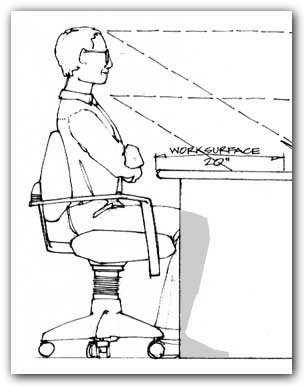
The object here is to spread the load along your thighs to reduce pressure points. So start by sitting down with both feet flat on the floor (normal shoes, high heels are another problem entirely) shoulder width apart. Now adjust the height of the chair (the middle paddle on the right side below the seat. No, the middle paddle!) so that you feel even pressure from front to back under your thighs without it raising your feet up.
Seat Pan Angle
We'll see if I can get through this without using the word butt. Oops. If your seat has this adjustment, it is usually the forward paddle under the seat pan (another technical term for that mostly-flat-padded-thing-you-sit-on-top-of) has two positions: Down, it locks the seat angle; Up, the seat angle is free floating (try it, but be careful if you have problems with motion sickness).
Starting with people who like their seat angle locked, here's how to set it: First, think about your normal working posture; do you lean forward to your screen or sit back at arms length from your keyboard? Forward leaners, adjust and lock the seat angle so that it is flat or very slightly forward (too far and you'll feel like you're sliding down all day long). Whoa back folks, adjust and lock the seat angle at a comfortable reclining angle. Now everybody READJUST YOUR SEAT HEIGHT! when you change the angle of the seat, your knees move up or down, and everything's connected down there, so your feet probably aren't where they started.
Like to try living on the edge? Then read on about free floating seat angles... Ergonomic research showed that people who sit all day in the same position get tired. That research showed that a dynamic position where the user was in tension was a better solution. In the real world, most humans don't like to fight with their chairs, but thanks to advanced furniture technology you now have that option.
Pull up the seat angle paddle and leave it there. Whoa nellie! OK, there's a couple more controls to learn for this mode: The little shift lever on the right at the very front of the seat pan sets the forward tilt limit (it can keep you from sliding off the front of the seat, unless that's what you want), the big knob under the center of the seat (flip the chair over on it's side to see it) adjusts the tension level your legs are working against to telt the seat back. If you get all this set right, you can lean forward AND sit back at your discretion (just be ready to adjust the seat height from time to time). Heaven!
Backrest Angle
Many chairs also have adjustable backrests. Pull up on the (usually) rearmost paddle on the bottom of the seat and lean forward and back to position the backrest, then release the paddle at the most comfortable position.
You can even adjust the back up and down! This will place the lumbar support at the correct height. To find your lumbar curve, lean forward from the back until you can insert your flat hand, palm rearward, between your back and the backrest. You should beable to easily feel the inward curve of your spine along the lumbar region, and the correponding curve of the backrest should be at the same height. If it is not (and if you are tall or short, it probably will not be correct), then find the small lever at the bottom of the backrest and pull it, twist it, whatever. Now use your other hand to move the pad up and down until you reach nirvana, and then tighten the adjustment lever. Ahhh!
Armrest Height
Armrests adjust independently via knobs on the outside of each armrest, below the pads. They should be adjusted in conjunction with your keyboard so that your forearms are parallel with the floor as you type. Some people prefer to have their elbows resting on the pads all the time, others do not. Try both. One note of caution here, make sure your armrests are set to the same height if you lean on them, otherwise you may slouch to one side and eventually pinch a nerve.
Living in your Chair
Your body is evolved to move around. A lot. You need to move around to pump blood through your extremities, as blood pressure is not sufficient to flush fresh blood throughout the capillaries of your extremities. Muscular exertion aids this pumping action and prevents waste products from building up in your bloodstream. Even when you sleep and body processes slow down, your autonomous nervous system will make you shift in your sleep every 15 to 20 minutes. You cannot sit in one position all day without hurting yourself.
So make it a habit to move around and shift position frequently, and take short breaks to walk around. Try a variety of foot positions. Bring in a cushion for your feet. When reading, lean back for a while, then tilt forward for a while. Try changing your chair settings. Try stretching regularly. Please. You'll be happier, and easier to work with.
Standing Desks
The increasing use of standing desks at first looked like a fad, but we should be grateful that their adoption continues to increase. Standing is much better for you than sitting once you get used to it, and adjustable height desks truly accomodate people who want both. The same rules for monitors, keyboard, and mouse positioning apply.
Adjusting your keyboard position, and mice
Palmrests and Carpal Tunnel Syndrome
Millions of typists worked at manual and electric typewriters for years without this problem, so what is happening here? Well, work is changing. Those typists also did other things like filing and changing paper, and they had BETTER HABITS like not resting their hands on the edge of their keyboards. Now, we spend hours typing with our wrists in all kinds of strange kinked positions and then wonder why our pinkies tingle?
I had a run-in with Carpal Tunnel Syndrome years ago, and a simple palmrest fixed it. If you don't have a palmrest, GET ONE!
Most keyboard shelves all have palmrests now, but you probably need to adjust the height and angle. Yes, most of them adjust. Loosen those little thumbwheels at each end along the front of the shelf and pull the pad UP so it is even with, or higher than, the front of your keyboard. Now tighten those little suckers down and rest your hands in place... D'Oh! it slipped down! Repeat adjustment and tightening. D'Oh! Tighten. D'Oh! Bring in some pliers if you must, but get that palmrest into position.
Keyboard Height
What's the goal here? To keep your wrists as straight as possible. Now that you've got your seat adjusted (If not, scroll up and read that section), you'll want to adjust your keyboard height so that your forearms are parallel to the ground. This is really important so I'm going to shout now, YOUR FOREARMS SHOULD BE PARALLEL TO THE FLOOR!
Use the paddles under your keyboard shelf to adjust the height and angle of the keyboard until (here it comes again) your forearms are parallel to the floor and your wrists are in a comfortable, relatively straight position.
Here's something weird:
The layout of keys on your keyboard was deliberately designed
to slow down your typing. It's true. In the early days of the mechanical typewriter, engineers
had trouble with the little hammer-like keys sticking together when a typist got moving
too fast (Inertia, it's the law).
Remington came up with a unique keyboard layout where
the common key combinations were located together under the weaker fingers of the left hand.
The Remington layout, called QWERTY for the letters in the upper row, became popular because Remington
made a lot of typewriters. It was hard to train to type fast, no one wanted to learn another layout.
Dvorak and ASK (American Standard Keyboard) were two later designs developed to make typing easier and faster, but they failed in the market.
Today we live with a keyboard layout which is hard to learn
(and slow) despite the fact that there is no mechanical, ergonomic, or psychological reason not to change.
Mousing Around
The goal here is the same as for the keyboard. Look at your wrist while you are using the mouse, if your wrist is kinked make an adjustment.
NOTE to tall people: If you have an arrangement with a computer in the corner of your work area, you may (will) find that the mouse shelf attached to the end of your keyboard prevents you from raising the keyboard to the correct height. Remove the mouse shelf and place your mouse on the table surface if this happens. Better to move your arm a little than to have your keyboard set too low.
Positioning your Monitor to reduce eyestrain, and posture issues
Monitor Height, Angle and Distance
A lot of people have their monitors too high. Especially if you've set it on top of a CPU;
then you would have to be Andre the Giant to avoid an eventual neck cramp.
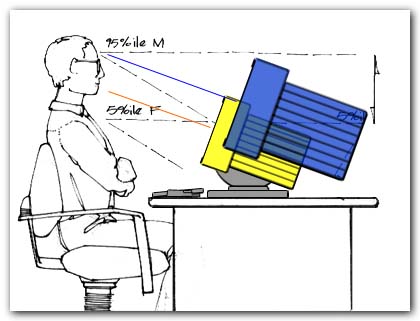
Your normal eye position varies from 6 to 15 degrees below horizontal. The correct height for a monitor would place the top of the screen about parallel with your seated eye height This positions the center of the screen right in your normal eye scan pattern. If you've been using your monitor stacked on top of your CPU case you may find this to feel too low at first, but it will reduce neck strain to move it down.
Adjust your monitor's angle so that the center of the monitor is perpendicular to your eye position. For most monitors, this is not possible because their adjustments are limited, so do the best that you can. You can try moving the monitor closer or further away to help match your eye height and monitor size.
Optimum distance from CRT monitors is a hotly debated topic. Some say
(from bad-old cathode ray tubes with ionizing radiation safety) the monitor should be an armslength away.
Others say that 18 inches is sufficient distance.
LCD, OLED, and plasma flat screens are safer, since there are no cathode rays.
The other type of radiation produced by a monitor is non-ionizing
electromagnetic (Radio, EMI, RFI) radiation. Again, this should be very low level since it is
regulated by the Federal Communications Commission to protect other electronic devices from
noise. Radio Frequency emissions, or RF interferance,
are generally limited to very low-level broadcasts from the sides and rear of monitors.
What is much more important is whether you can read your monitor clearly and without eyestrain. If you see visible flickering in peripheral vision at the edges of your screen, you should adjust the refresh rate, adjust the display resolution, or ask for another monitor. Lettering should appear clear and sharp, not blurry. Contrast should be good, with blacks and whites that have no tints of color.
Use the highest resolution settings that you are able to read to enable you to see more information on screen at a time. Pixels are the most valuable resource in the human universe, as computing power continues to double effectively every couple of years, but it appears we will have HDMI monitors for a while. Display pixels are the principal communications path between the computer and your brain, so hoard them when you can.
Centering your Monitor
Please, please, please, center your monitor behind your keyboard so your neck is straight and your trunk is not constantly twisted to one side! If you're leaning all day you'll hurt your back. Think what it would be like to have one shoe taller than the other and be forced to stand and walk in those shoes all day; it would hurt! Stop hurting yourself, center that monitor and keyboard.
Dealing with Glare
If you've got everything arranged as above, glare comes from light sources behind your head. Glare is insidious, stealing your valuable pixels! Face your desk and monitor away from windows, reduce overhead lighting and use more task lighting on work surfaces to reduce glare.